VlogMe

AI dance animation Make a character dance from one image

Use a full-body character image plus a movement reference. Kling 3 Motion Control Pro, in the Motion transfer workflow of Video Studio, maps the dance onto your character.

  • Set up without signing up
  • Files stay local until you continue

Try it with your own files

Set up your generation

After you sign in, your character and dance video upload to Lab and open in Video Studio’s Motion transfer.

  1. Add the character
  2. Add the movement
  3. Check the estimate
  4. Generate the dance

01Motion transfer

Your character, the reference movement

Kling 3 Motion Control Pro uses both files: the look comes from your image, the movement from the reference clip.

  1. Real motion transfer from a reference clip
  2. Works with people, mascots, anime, and stylized characters
  3. Optional direction for framing and character behavior
  4. Runs in the Motion transfer workflow of Video Studio

02Show, then explain

Three ways to make one character move.

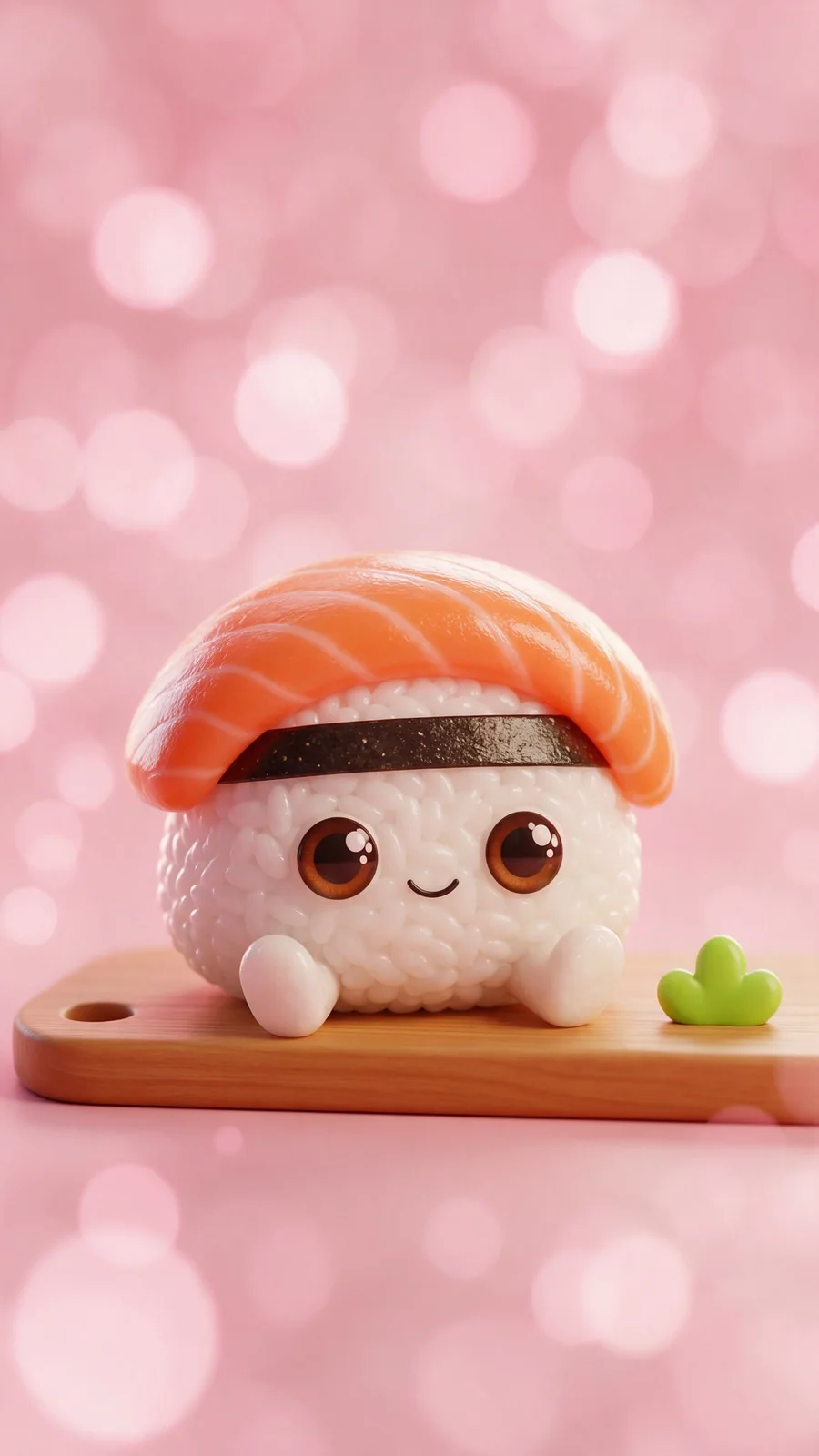
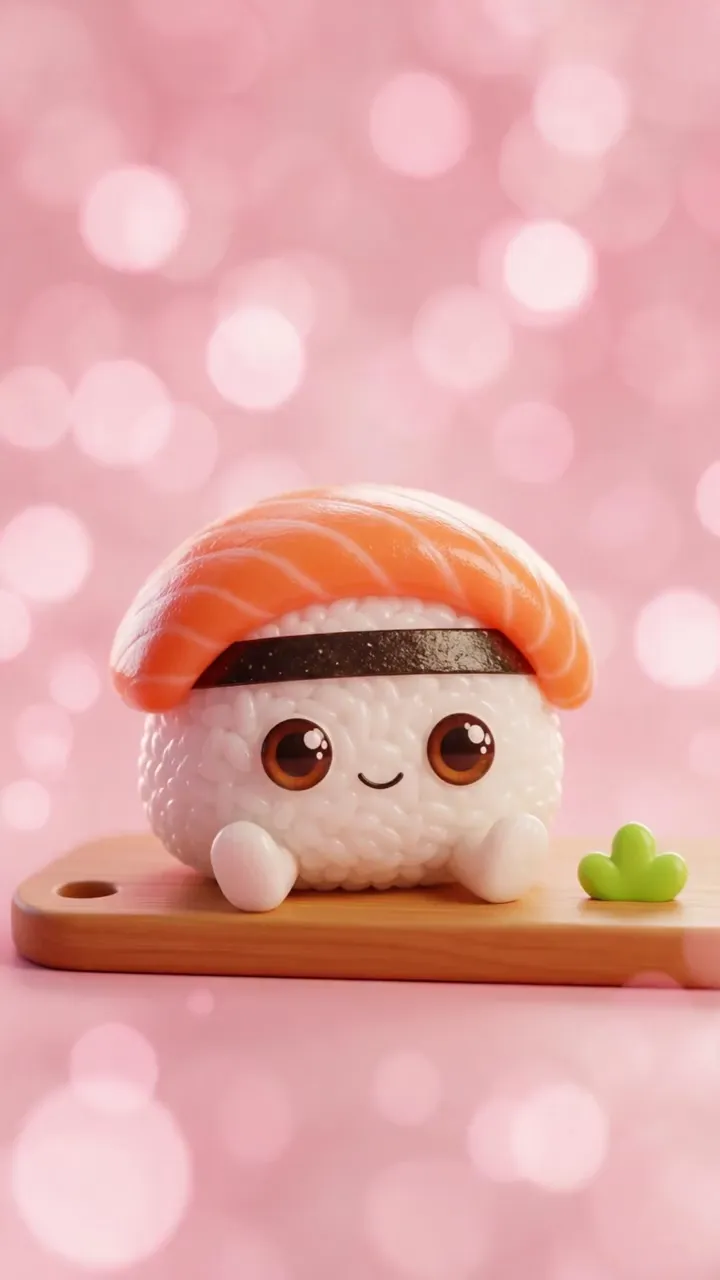
Character dance: the salmon-nigiri character hops, wiggles and spins on its board
Kling 3.0 Pro9:16
Source image: a 3D salmon sushi character
Source image

01Text-directed dance

No reference clip? Write the moves.

This salmon-nigiri character had only a text direction (hop left and right, wiggle, spin once, blossoms falling), and Kling 3.0 Pro image to video turned one still into 5 seconds of dance.
Animate from a description

02Reference movement

Copy a real move with Motion Control.

When the choreography matters, add a short clip with one clearly visible performer. Kling 3 Motion Control Pro transfers that movement onto your full-body character while the look stays yours.

See Kling Motion Control
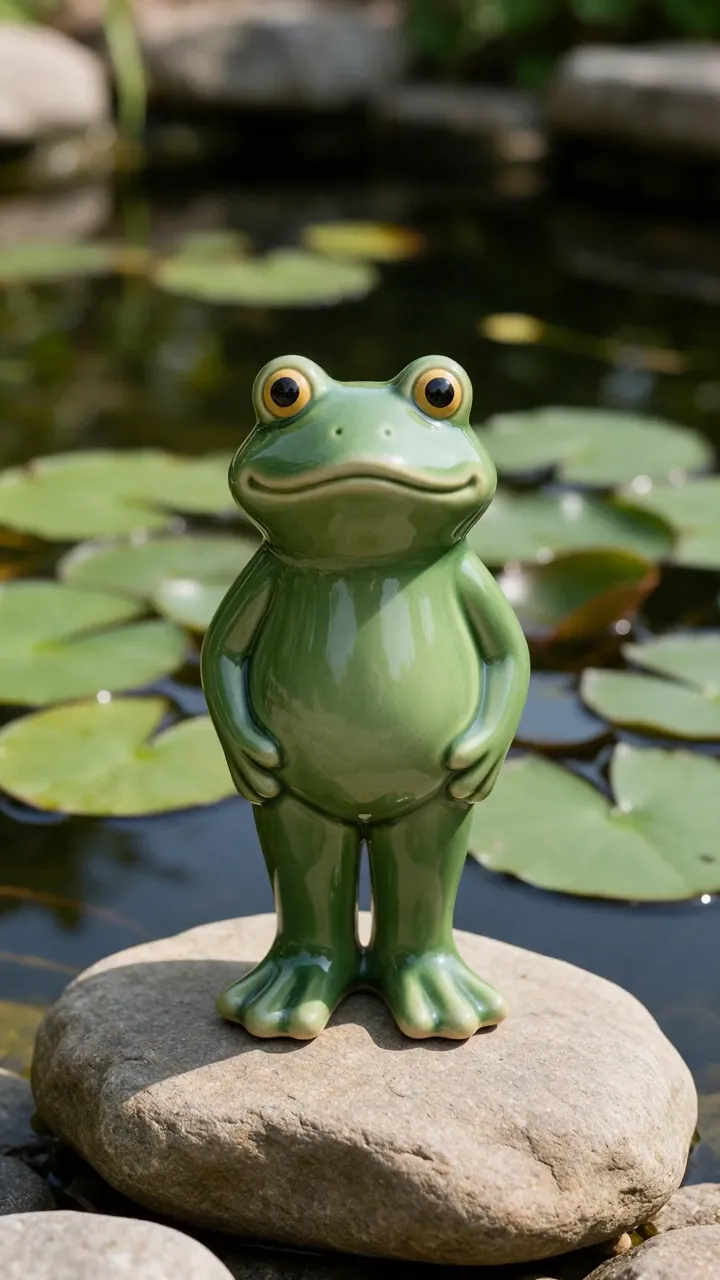
Seamless loop: a ceramic frog figurine hops, claps and lands back in the same pose
MiniMax H3 · loop9:16

03Seamless loop

End on the first frame. Loop forever.

Use the same still as the first and last frame and describe one move in between. MiniMax H3 made this frog hop, clap and land back in its pose in 4 seconds, so the clip loops without a jump.

See MiniMax H3

Video Studio

Create clips and avatars
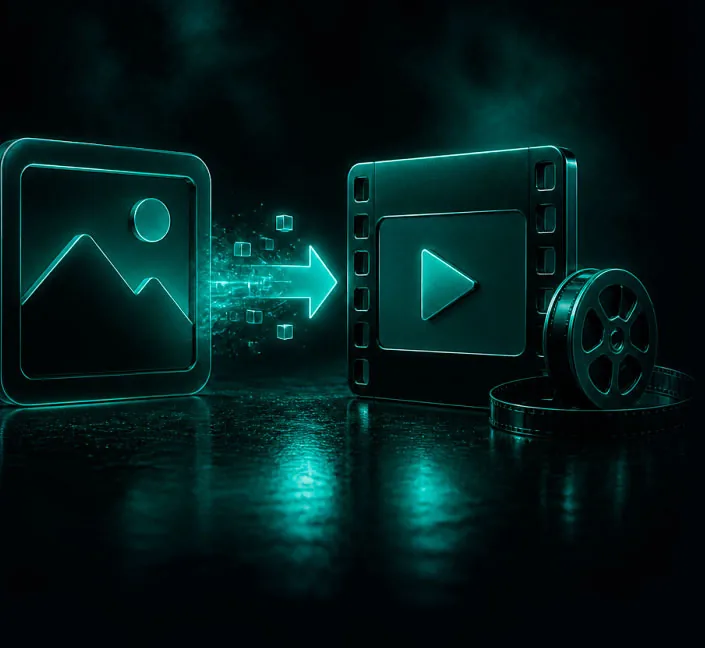
  1. Your starting materialA character image and motion reference
  2. The resultA character motion video
Continue in Video Studio

03How it works

Character, movement, then the transfer.

  1. Upload the character

    Use a full-body image with arms and legs uncropped and clearly separated from the background.

  2. Add a dance reference

    Use a short clip with one clearly visible performer and, ideally, a steady camera.

  3. Transfer the movement

    Check both files and the framing notes in Motion Control, then generate the dancing character.

  • Motion transfer
  • Full-body characters
  • Text-directed dance
  • First/last-frame loops
  • Credit estimate first

Continue in Video Studio

Copy a move, write a move, or loop one.

Motion transfer follows a reference clip: that is what the button above sets up. A written direction runs in image to video, and first and last frames close a loop. All three live in Video Studio, with the credit estimate shown before each run.

  • Motion transfer from a reference clip
  • Image to video from one still
  • First and last frames for loops
  • Results saved to Lab
Copy a move

Questions before you create

Character dance, answered.

Do I need a full-body image?

It is strongly recommended for dance. Cropped limbs cannot be reconstructed reliably.

Can I use an anime character?

Yes. Clear anatomy and a simple background usually produce the best result.

Can I use any dance video?

Use footage you own or have permission to reuse, ideally with one performer and a steady camera.

Can I make a dance without a reference video?

Yes. Describe the moves and use image to video instead; the sushi example was made that way with Kling 3.0 Pro.

Can the dance loop for social posts?

Yes. Use first and last frames with the same still; the frog example loops after 4 seconds.

Can I animate a real person's photo?

Only with their permission, and never to impersonate or mislead.

Your character is ready

Give your character the moves.

Add the character and the movement here, then open Video Studio to check the estimate and generate.

  • Motion transfer from a reference clip
  • Reference clips up to 30 seconds
  • Results saved to Lab

Nothing uploads from this page · Credits are shown before you generate